2026-02-21

ByoWave Proteus controller

On paper, the ByoWave Proteus controller sounds like a perfect setup for a failed Kickstarter. A small team makes an attempt at a very ambitious first product, fails to deliver at all or delivers some severely cut down version of it after years of delay. Except in this case there was no Kickstarter and they didn't fail. This post is a random collection of thoughts and facts about the controller, presented in the hope that it might be useful to someone trying to decide if it's the right solution for them. All my experiences are with the as-of-now-current V2 edition of the controller.

You probably already know what it is if you're reading this, but let's start with a quick recap of the premise. The ByoWave Proteus controller is a modular game controller with a strong focus on accessibility. The idea is that you can build different controller shapes with it to match your individual needs. It consists of a number of rounded cubes that can be connected together, either directly or using additional spacer elements. There are two types of cubes: the power cube, which has a battery and is responsible for the wireless connection to your computer or console, and the analog stick cube, which looks the same except one face has an analog stick on it. Buttons and triggers are attached to the faces of the cubes. There's a four button attachment (ABXY and Xbox system buttons), a one button attachment, a d-pad attachment, a bumper/trigger attachment and a small analog stick attachment. It also comes with grip attachments that can be used for building traditional controller shapes.

The Proteus controller uses the Xbox One controller protocol (it is an officially licensed Xbox product) so out of the box it's compatible with Xbox One and Series consoles and Windows PCs. It also works on Linux if you have a recent enough (6.16+) kernel and it does work on the Steam Deck. It comes with a wireless dongle and the dongle is the only way it connects to the host. It does not have Bluetooth and it does not work wired (though it requires a wired USB connection to the PC for configuration, more on that below). You can use adapters to make it work with other consoles like the PS5, Switch or Switch 2.

The packaging it comes in is very nice and I'm definitely keeping it for storing modules that are currently not on my controler. The controller itself also just looks cool, which is perhaps not as important as whether it works well, but I think it's good that some effort went into it. Accessibility oriented controllers shouldn't have to look like hospital equipment. I like the snap-on covers with various playful designs.

It comes with two power cubes, which lets you use the kit to build two separate controllers (perhaps for a split configuration), but the wireless dongle can only talk to one controller at a time and the kit only comes with one wireless dongle, so to actually use it like that you'd have to buy an additional wireless dongle. Once you do you can use the "Assist" function on Xbox and Windows to make the two controllers work as one. I assume there's some technical reason why a single dongle can't talk to two power cubes simultaneously, but if would be really awesome if it could: split configurations make a lot of sense for a lot of people.

In addition to working as an Xbox controller ("GIP mode"), the controller can also emulate a mouse/keyboard combo ("HID mode"), which works on any platform that supports mice and keyboards. In this mode you can also define macros (strings of inputs) executed with a single button press.

The cubes and attachments come with default functions and you can build various configurations without ever having to use the configuration utility, just by disconnecting and reconnecting the modules to achieve different controller shapes. Which, by the way, you can do on the fly, without having to power down or disconnect the controller. But of course at some point you might want to change the default functions. This is done through a web application that connects to the controller over USB via the charging module. The charging module is just an attachment with a USB port and, as the name suggests, it's also used to charge the batteries inside the power cubes. Please note this USB connection is separate from the wireless dongle (which also plugs into a USB port of course). This means that when you're configuring your controller you might have both the dongle and another USB cable plugged into your PC. But this also means that you can plug the dongle into a different machine. So for example you can plug the dongle into your Xbox console while also having the controller connected to your PC using a USB cable. That way you can reconfigure it live and see the effects immediately in game.

The web based configuration utility uses WebHID to connect to the controller so it only works in the desktop version of Chrome (and possibly other Chrome-based browsers like Edge). Windows, Linux and Mac versions of Chrome are all fine. I love that this has now become the standard for configuring devices like this. Boo Firefox and Safari for not supporting WebHID.

Inside the configuration utility you can remap the buttons, sticks and triggers and switch between controller and keyboard/mouse modes. It shows a 3D view of your current controller shape and it updates live, which I think is a really nice touch. You can do most things you would expect, like change the "up" direction on the sticks, which is necessary given all the different ways you can put the modules together. Though there are still things that it lacks, for example even though it has a "shift" functionality, letting you assign a separate function to buttons when a certain button is held, this cannot be done in a "toggle" manner, enabling the shifted functions permanently without having to hold that button. ByoWave keeps adding new features so if there's some specific thing that you need for your setup, it's best to check as reviews written near the launch might not have all the current information.

The hardware itself seems robust, the modules connect securely and don't look like like they'll fall apart. But I haven't used it enough to speak about long-term durability.

I noticed that it takes 15+ seconds for the controller to connect to the wireless dongle once you turn it on. It's not a huge issue, but I'm used to other devices that connect immediately.

As I mentioned, the entire point of the controller is that you can build it in various shapes to suit your needs. An important aspect of that is that you don't have to use all the modules at all times. If the game you're playing only requires one analog stick and one or two buttons, you can build a configuration that only has those, that you can better use with one hand for example (in other words, it scales down nicely). That said, any given configuration you come up with will probably not be as good as a non-modular controller that was designed to have this shape from the start. If all you want to build is a PlayStation-controller-shaped controller then you're probably better of getting a PlayStation controller. Of couse, the whole point is that most shapes you can build with the Proteus are not available to buy off the shelf.

In addition to the modules the controller comes with, ByoWave designed and published files for 3D printable attachments for the controller. Using these files someone could conceivably design new shells or ways to connect the existing modules, making even more controller shapes possible. The caps on the analog sticks are also replaceable and there are some 3D printable designs for alternative caps fulfilling individual needs.

For example, I printed an attachment with an M6 thread insert and used the Proteus module as the balltop on an arcade stick lever.

Currently the Proteus controller is sold in two kits: one offers all the modules necessary to make a standard controller and the other only has a subset of the modules and comes with a one handed shell for a tabletop controller. It would be really good if the modules were available individually and I hope in the future ByoWave will let us pick and choose. Perhaps some more niche modules could be offered this way. There are signs that they're working on a motion (gyro) input module, which would be interesting (though likely hindered by the Xbox platform's lack of native support for it). I could also imagine button modules with various shapes and various actuation forces. Perhaps we could even have a module with one or more 3.5mm jacks that could be used to extend the setup with external buttons or switches, Xbox Adaptive Controller-style.

Speaking of the Xbox Adaptive Controller, the Proteus controller does not appear to work when the wireless dongle is plugged into the USB ports on the Xbox Adaptive Controller. This is somewhat weird because the XAC already knows how to talk to the Xbox Adaptive Joystick for example, which uses the same Xbox One controller protocol as the Proteus. So it would probably just be a matter of allowlisting some additional product IDs. This is not a huge issue because, as I mentioned, you can use the "Assist" function on Xbox and Windows to make two controllers work as one, so you can use it to combine the XAC and the Proteus controller into one. But if you're using the XAC as part of your Switch or PlayStation setup using adapters, or you're on Steam Deck, you don't have this option.

But on a related note, I'm happy to report that the Proteus controller works great with HID Remapper in both GIP (controller) and HID (keyboard/mouse) modes. You could make it compatible with the Nintendo Switch and Switch 2 this way or enhance its functionality beyond what the Proteus can do by itself. Indeed you could also use HID Remapper to make the Proteus controller compatible with the Xbox Adaptive Controller or use it to make two Proteus controllers work as one on non-Microsoft platforms.

On the Proteus controller, the controller and keyboard/mouse modes are mutually exclusive, the controller is either in GIP mode or HID mode. First party Xbox controllers like the Xbox Adaptive Controller and the Elite controllers can be configured to send keyboard inputs while working as a controller. I wonder if this is something that ByoWave could add to the Proteus controller in the future.

I haven't done any proper performance testing with the Proteus controller. In some informal tests I have never seen it send more than 50 reports per second. This probably has consequences for input latency. Ultimately you will have to decide whether this matters to you. I doubt it makes any difference in casual play. It might make a difference for pro players, but I don't think they're the target audience here anyway.

The biggest downside for me is the lack of native PS5 compatibility. I don't know the reasons for it and I don't know what it would take to make it possible. My guess is we would need a separate wireless dongle for the PS5, which I think a lot of people would be okay with if it meant not having to deal with adapters. But there might be some bigger non-technical obstacles.

I can't tell you if the ByoWave Proteus controller will be the right fit for you, but I hope I have provided some data that will help you make an informed decision. Thanks for reading.

2026-01-02

2025 roundup

Here's some stuff I did last year.

  • Pixelrings: LED earrings programmable in Python.
  • RP2040-RS232: RS-232 adapter with an RP2040 chip. Can be used to adapt ancient serial mice or 3D mice for modern systems or as a generic serial-to-USB adapter.
  • Some new Flatbox revisions:
    • rev4.1: an updated RP2040 variant with a USB host port
    • rev4.1wasd: same but with a WASD layout
    • rev8: an RP2350 variant with a USB host port
    • rev9: a SAMD21 variant
    • rev10: an STM32G0B1 variant
  • Portable Gamepad Firmware: a wired game controller firmware. Through the power of Zephyr the same code runs on many different platforms with the hardware details defined in devicetree overlays. Functionality is super basic right now, but we have builds for many different boards, including the Flatbox variants above. Does 8000 Hz on hardware that supports it (currently Teensy 4.0).
  • HID Remapper now has a proper website and a forum. Also builds for the RP2040/RP2350 Flatbox variants.

2025-03-07

What I've been up to

I used to post on this blog whenever I finished a project, but these days I typically just put it on GitHub and call it a day. I think some of these projects deserve separate posts, but just in case I never get around to it, here's what I've been doing for the last three years or so.

  • HID Remapper: programmable adapter for USB input devices. Remap buttons, make keyboards work as game controllers, make joysticks work as mice or vice versa. Lots of cool stuff, including accessibility applications.
  • Flatbox: this one got its own post, but I've made a few more variants since then, including a wireless one!
  • Trackballs: I made a PCB with an RP2040 chip and a PMW3360 mouse sensor that can be used to quickly prototype mice and trackballs. Then I made a few trackballs using it. Notable mentions: spherical trackball, two-ball trackball, trackball with twist-to-scroll, trackball with scroll ring.
  • Slimbox Generator: a website for rapid prototyping of leverless controller layouts. Generates 3D-printable files.
  • PlayStation Access Controller Profile Editor: a website for editing the button mapping on a PlayStation Access controller without a PS5.
  • HID Forwarder: a system for sending synthetic inputs from a PC to something like a Nintendo Switch, over serial, wifi or Bluetooth, with potential accessibility applications.
  • Slimbox BT: wireless game controller firmware for nRF52 chips.
  • Zero Latency Gamepad: lots of products claim low latency, mine actually comes very close to what's physically possible on Full Speed USB.
  • Latency tester: speaking of latency, I made my own latency tester for game controllers and other USB input devices because I wasn't happy with existing ones.
  • Spaceball 2003 USB adapter and Magellan/SpaceMouse USB adapter: these let you use ancient RS-232 3D mice with modern software.
  • Google Meet mute button: a physical button that lets you mute your microphone on a Google Meet call regardless of which window is active and has a nice LED indicator to show when you're on call and if the microphone is muted.
  • PS5 adapter for old Logitech wheels: play Gran Turismo 7 with the Logitech Driving Force Pro wheel from 2003. Possibly other old Logitech wheels.
  • RPM lights for Gran Turismo 7: use GT7 network telemetry to make pretty physical shift lights for your virtual car.
  • Screen Hopper: smart KVM switch that lets you just drag the cursor from one computer to another, no software required. A hack on top of HID Remapper.

2022-07-27

DIY Surface Dial

Microsoft's Surface line of hardware has some nice computers and accessories. Among the accessories there's the Surface Dial - a Bluetooth knob that can do things like volume control, scrolling, undo/redo and some other functions in certain applications, mostly artist-oriented. For some reason the physical form of the Surface Dial appeals to me, but since its price is not exactly in the impulse buy territory and I don't have a practical need for it, I never got one. But now I have made my own version of it. It's not as nice as the real one and it's missing some of the functionality, but it really does work as a Surface Dial in the software that supports it.

There are two aspects to this device, making the physical hardware and programming it so that Windows recognizes it as a Surface Dial.

From the hardware perspective, we need two things - a way of detecting the dial's rotation and a button. On the real Surface Dial the entire knob works as a button, but in my version, there's a separate button in the middle, made using a mechanical keyboard switch. As for the dial itself, instead of using an off-the-shelf rotary encoder, I made my own using small neodymium magnets and two Hall effect sensors. Its principle of operation is the same as with other incremental encoders, the sensors are oriented so that their signals have a phase difference. In theory we could get better resolution by using the full resolution of the sensors' output, instead of treating them as binary, but I haven't done that. The resolution I got is determined by the number of magnets (48).

I designed the case for the device in Fusion 360 and 3D printed it. The dial sits on a 6806 ZZ bearing and has a very satisfying feel. Here's what it looked like during assembly.

For the microcontroller I chose the Adafruit QT Py RP2040, it's small and uses the RP2040 chip from Raspberry Pi (it has a similar form factor to Seeed Studio's XIAO RP2040).

Since we're talking about Microsoft, I half-expected the Surface Dial's protocol to be some proprietary nonsense that would require reverse engineering to replicate. Imagine my surprise when I found out that it's actually standard HID and there's proper documentation for it. All you have to do is put the right stuff in the HID report descriptor and it works similarly to a regular USB mouse or keyboard.

I put all the code and 3D-printable files on GitHub, along with a list of components used and instructions how to put them together.

2022-07-09

Two mice, two cursors

I always thought that when you connect two mice to a computer, there should be two mouse cursors, one for each mouse. Unfortunately that's not really how it works on modern operating systems, at least not by default. Software add-ons exist that draw a second cursor for the second mouse (and also perform some tricks to make button clicks work as expected). I'm sure they work fine, but I came up with a pure hardware solution to the problem that requires no special software running on the host. Here's a video demonstrating this solution.

What you can see here is two mice, connected through a USB hub to an Arduino Leonardo with a USB Host Shield. The mice are wireless, but they use 2.4 GHz USB receivers so they're effectively USB devices. The Arduino is connected to the computer and acts as a USB mouse.

The Arduino reads inputs from the two mice, does its magic, and sends the resulting inputs to the computer. What's the trick that makes the computer display two cursors? If you look closely, you'll notice that the two cursors flicker a bit. That's because they're not really two cursors, instead it's just the one normal cursor oscillating quickly between two positions on the screen, appearing as two due to persistence of vision. The Arduino keeps track of the X/Y positions of both cursors and updates them based on the inputs received from each mouse. Then it alternates between the two causing the illusion of two cursors. To be able to do that it uses absolute cursor positioning, unlike a regular mouse, which only sends the X/Y deltas and doesn't know where on the screen the cursor is at any moment. (I have previously used absolute cursor positioning for both good and evil.)

One remaining problem is what to do when you click a button on one of the mice. The user will naturally expect for the click to happen at the screen position of the cursor corresponding to that mouse. So we can't keep alternating between the two cursors. For as long as the button is pressed, we only send the cursor position of the mouse that's doing the clicking. This means that the second cursor disappears for a brief moment, but the clicks work as expected.

If you want to play around with it, I posted the source code on GitHub. It uses the standard USB HID protocol and works with Windows, Linux and Mac, without any additional software needed on the computer.

2022-07-07

Razer Raion padhack

One of the problems when making a custom fightstick (arcade controller for fighting games) is modern console compatibility. While it was easy to make an Arduino or similar board work as a USB controller for the PS3, unfortunately it is no longer the case with the PS4 and PS5. Only licensed controllers work with them due to restrictions introduced by Sony. Every licensed controller has a private key embedded in it that allows it to perform some kind of authentication when connected to a console. One solution to this problem is a practice known as padhacking: taking the insides of an existing licensed controller and transplanting them into a different enclosure, for example a fightstick-shaped one, carefully soldering wires between buttons and the right places on the donor PCB.

In theory you can use any controller for this, like a DualShock 4 or a DualSense, but it makes sense to choose one that will be relatively cheap to obtain and also easy to solder to. One such controller is the Razer Raion. It was originally released for the PS4, but since it qualifies as a "specialty peripheral", it also works in PS5 games. I got one and made a mixbox-layout fightstick using its PCB.

First I had to figure out where the solder points that I need are on the PCB. Fortunately I found this helpful tweet and with this information it was a fairly straightforward job.

The rest of the fightstick was similar to what I've done previously, in fact I just modified one of the designs to accomodate the Raion PCB. Here's what it looks like inside. As you can see it uses common ground.

One thing to keep in mind when converting a controller like this is the matter of SOCD cleaning - what happens when you press opposing direction buttons at the same time? Most traditional controllers don't have to worry about this because it's physically impossible to simultanously trigger opposing directions on them. But when you make a stick that has separate buttons for up, down, left and right, that can be pressed independently, it's something you have to start thinking about. In case of the Razer Raion, it uses a scheme called first input priority, meaning that if you press and hold left, then press and hold right, it will keep sending left. When you release left, then it will start sending right. If I didn't like this, I'd have to add an external SOCD cleaner between the buttons and the Raion PCB.

I posted the 3D-printable models for this stick on Printables. It uses Kailh low profile (choc v1) mechanical keyboard switches for the buttons. Here's what the final result looks like.

2022-07-06

Flatbox

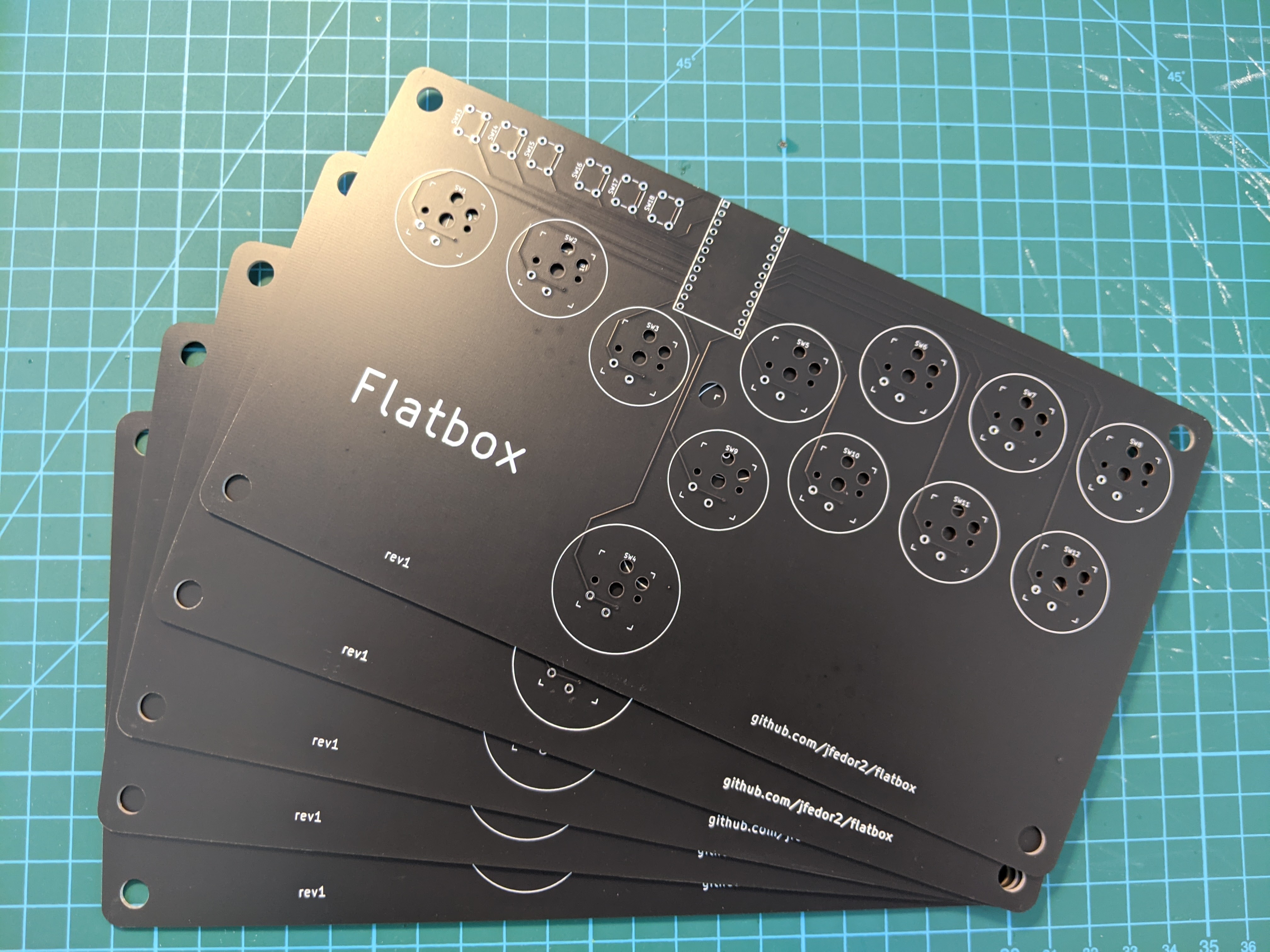
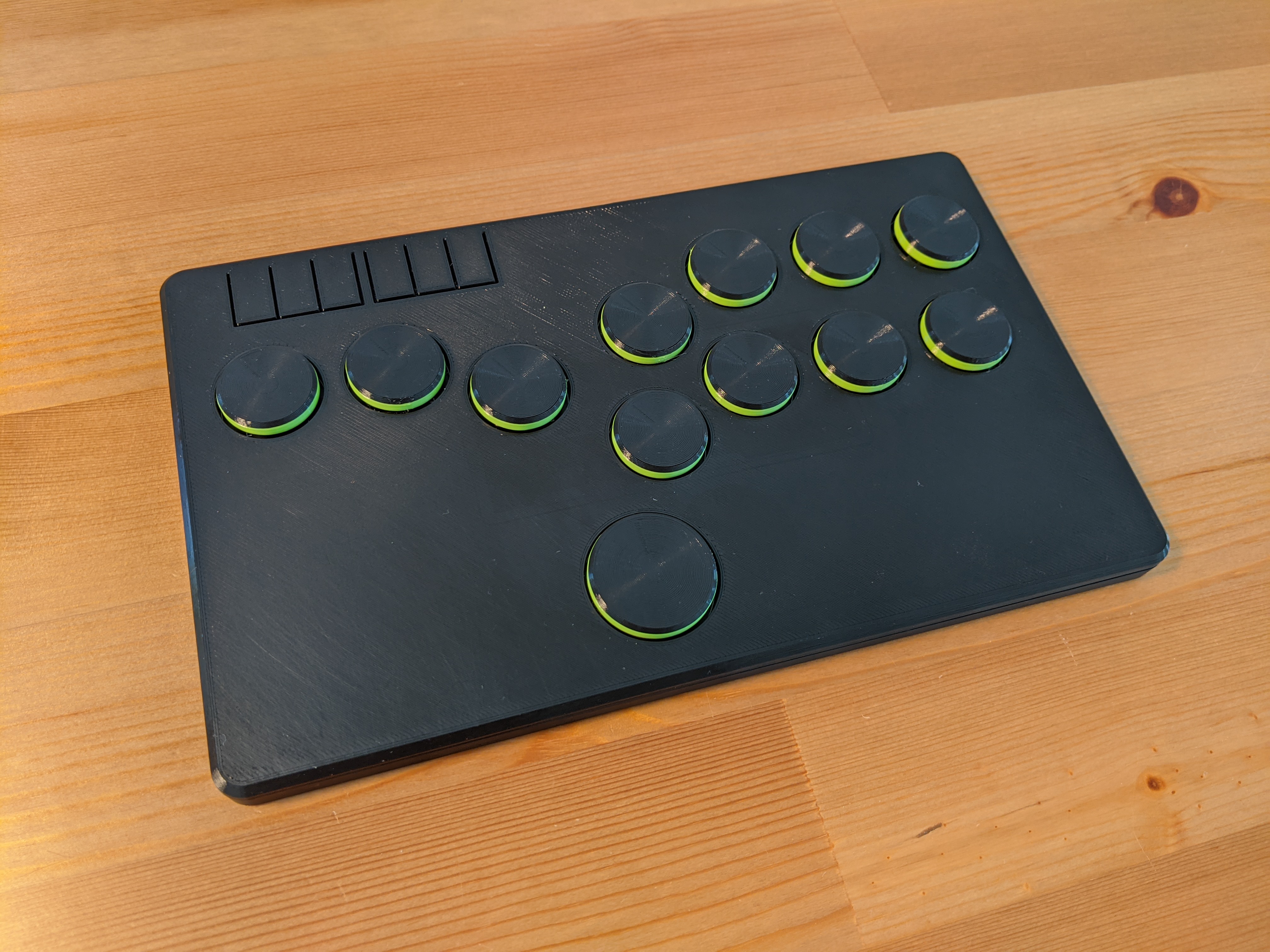
Having previously made some 3D printed fightsticks (arcade controllers for fighting games) that were just plastic boxes with holes for arcade buttons or mechanical keyboard switches, I started thinking, could I make one that's even thinner? On my previous designs I just soldered wires to the keyboard switches, but they're really intended to be soldered onto a printed circuit board. Using a PCB instead of the wire spaghetti inside the case seemed like a good way to shave a few millimeters off. And it turns out there are companies in China that will manufacture a custom PCB for you for very reasonable prices. And thus the Flatbox was born. I ended up making four revisions of it.

Up to this point I was using Arduino Pro Micros as the brains of my fightsticks, so it seemed natural to start with a PCB that I could solder a Pro Micro onto. The PCB would just serve as a connection between the Arduino's pins and the keyboard switches (I used Kailh choc v1 low profile switches). I designed my board in KiCAD, arranged the switch footprints in a hitbox-style layout, generated the Gerber files and sent them off to JLCPCB for manufacturing. After some days I was excited to receive a package with my boards inside.

I've never done anything like this before so I wasn't sure if the boards would even work at all. I'm used to prototyping on breadboards, if you make a wrong connection there it's usually not a big deal and it's a matter of seconds to correct it. Here if I made a mistake, not only would it cost money, but I'd also have to wait a week or two for another package from China. But fortunately everything worked great! I quickly designed and 3D printed an enclosure for it. I was very pleased with the result, just 10 millimeters thick!

I was encouraged by this initial success, but I thought having to solder an Arduino board onto my PCB wasn't very elegant. Surely an Arduino is just another PCB and I should be able to include the microcontroller and all the other necessary components on my PCB and eliminate the need for an additional board. That's what I did for revision 2. I designed the board to use SMD (surface mount) components for everything except the keyboard switches and option buttons. I would probably not be able to solder them manually, but fortunately JLCPCB will happily do the assembly for you, you just have to provide two more files in addition to the Gerbers (list of components and their placement on the board). This time I was even more afraid that it wouldn't work at all, because there was a lot more I could mess up, but surprisingly the whole thing worked on the first attempt. Because it uses the same chip as the Pro Micro (ATmega32U4), I was able to use the same firmware. I was very happy, because even though manufacturing the boards was a little more expensive, it was suddenly starting to look somewhat like a real product.

Speaking of firmware, while it's easy to make a USB HID device that works with a PC or a PS3, it is unfortunately not the case with more modern consoles. From the PS4 onwards, Sony started restricting their systems to only work with licensed controllers. Each licensed pad or stick has some special chip with a private key inside it that lets it authenticate to the console. And DIY-ers are out of luck. Except you can buy PCBs that somehow get around Sony's restrictions (I don't know how they do it). I wanted a version of the Flatbox that was compatible with the PS4 so for revision 3 I went back to the idea of soldering an add-on board onto the main PCB. I chose the Brook PS3/PS4 board because of its small size. The only SMD components on the main board are the USB port and the two resistors that it requires.

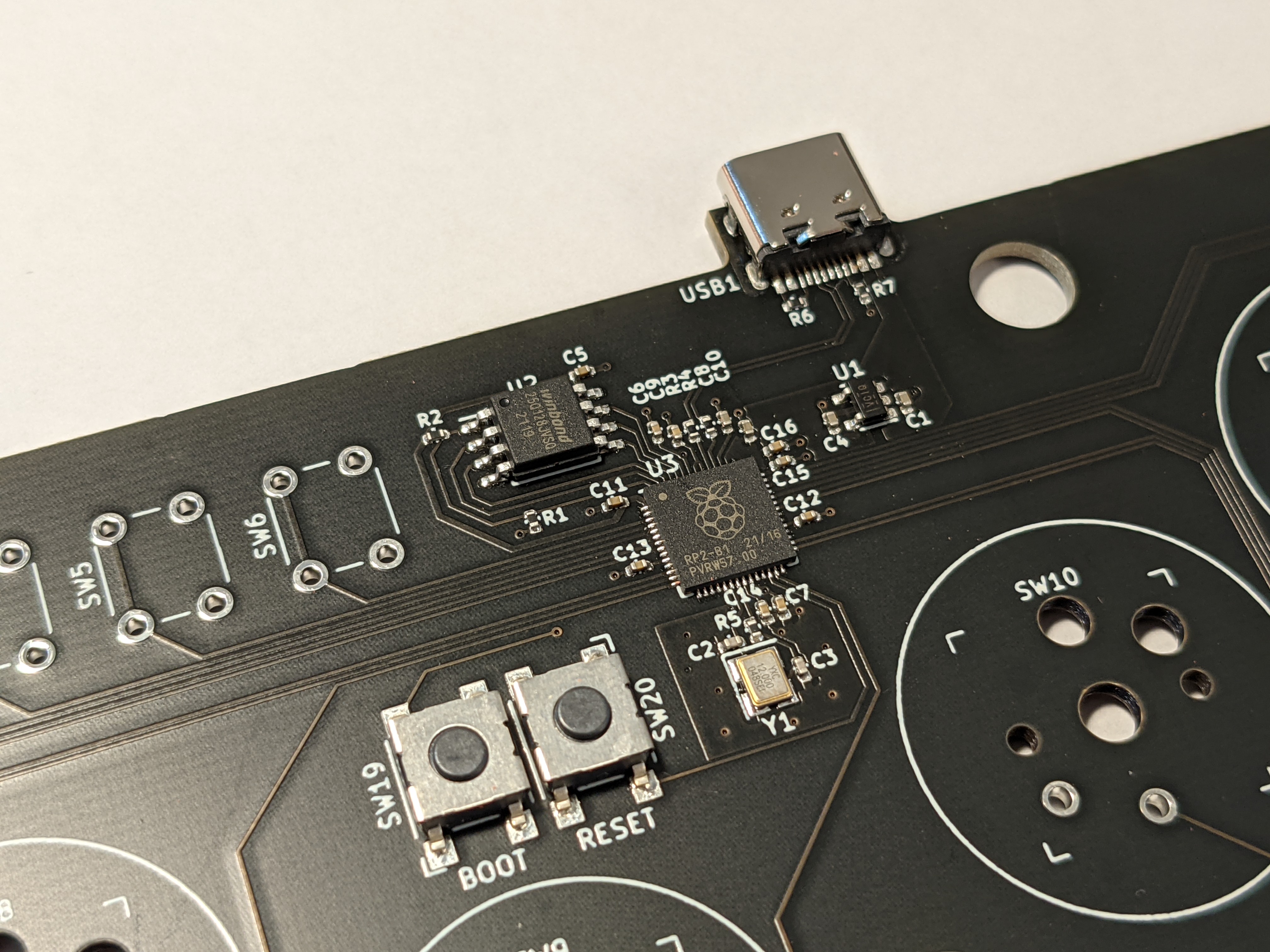
The fourth and final revision of the Flatbox again has all the components on the main PCB and doesn't require an add-on board. It is similar to revision 2, but instead of the ATmega32U4 chip it uses Raspberry Pi's RP2040. It is the revision I like best, even though it's not compatible with the PS4 or the PS5.

All the files needed to make your own Flatbox are on GitHub, including KiCAD projects for the PCBs, 3D-printable models for the case and source code for the firmware.